Docs › Account & safety
Account settings
Change your username, avatar, email updates, theme and language, or delete your account, all from the Settings page.
Everything about your account lives in Settings. It has three tabs: Profile, Preferences and Notifications.
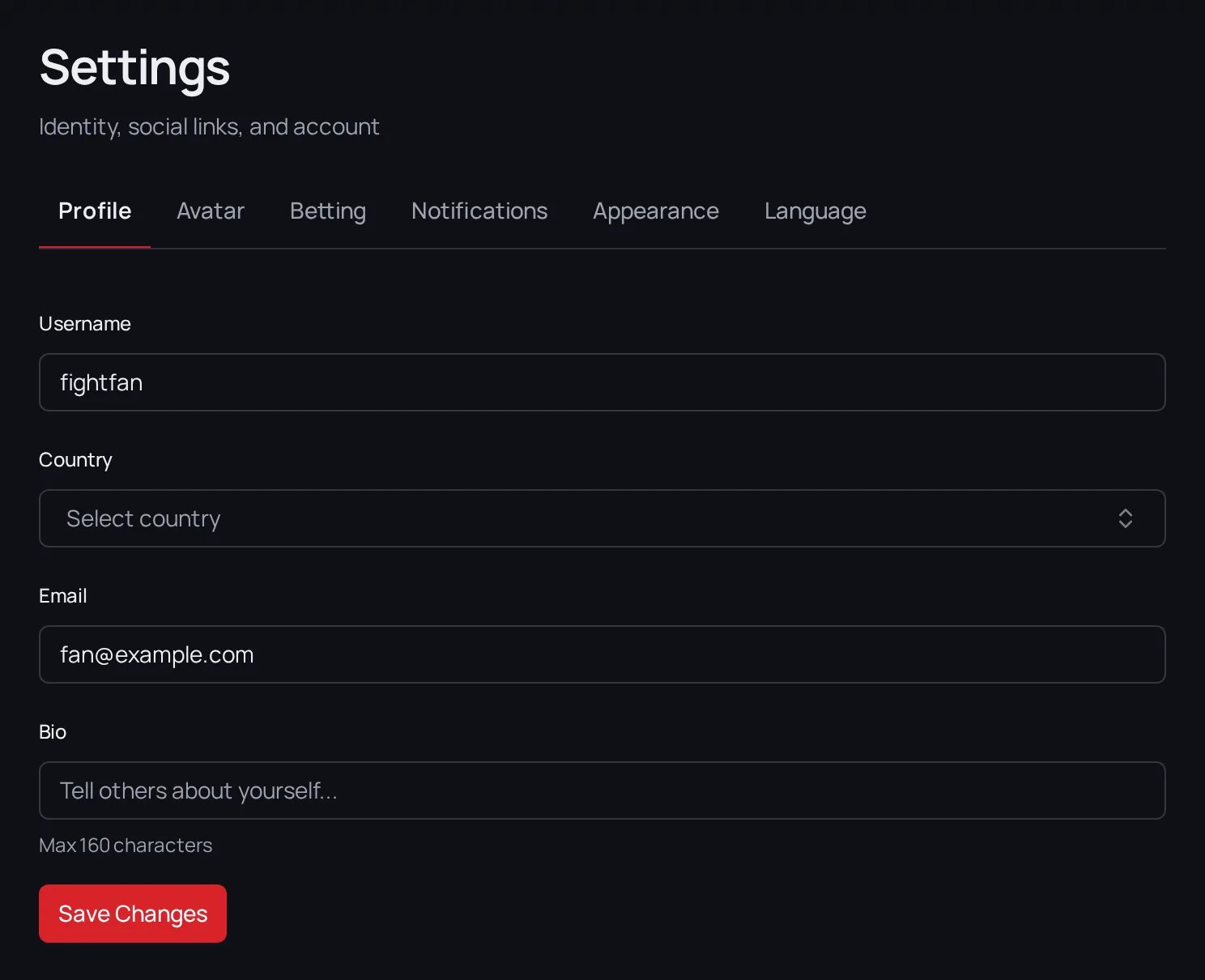
Profile
This is who you are on FightBets.
- Username: the name other fans see in the chat and on the leaderboard.
- Country
- Bio: a short line about you, up to 160 characters.
Tap Save Changes when you're done.
Social links
Add your Instagram, X (Twitter), TikTok and YouTube so other fans can find you. Tap Save Social Links to keep them.
Avatar
Still on the Profile tab, pick one of the ready-made avatars, or tap Upload Your Own. Uploads can be JPG, PNG, WEBP, GIF or AVIF, under 5 MB.
Preferences
The Preferences tab holds your betting, theme and language settings.
Betting
Allow low-liquidity betting is off by default. Leave it off and the bet slip on the fight page (on a computer) blocks any bet that would fill at a price more than about 5% worse than the one you see. That happens with big bets on fights where few people are betting. Turn it on only if you're fine with that risk. The setting is saved in this browser only.
Tip: If the bet slip says Enable low-liquidity bets in Settings, this is the switch it's talking about. Most of the time, a smaller bet is the better fix. Not enough liquidity is different: no setting changes it, so try a smaller amount.
Appearance
Pick Light, Dark, or System to follow your device.
Language
FightBets comes in seven languages: English, French, Spanish, Portuguese, Italian, Russian and Arabic. Tap one and the app switches right away.
Notifications
The Notifications tab lets you choose which email updates you get:
| Setting | What it's for |
|---|---|
| Bet Updates | Get notified when you win |
| Fight Alerts | Reminders when fights you're following go live |
| Leaderboard Updates | Get notified about your ranking changes |
| Marketing | Product updates and new features |
Tap Save Preferences after you change anything.
Delete your account
- On the Profile tab, scroll down to Delete Account.
- Tap Delete.
- If you still have Cash or open positions, you'll see You still have funds on this account, with the amounts. Deleting doesn't send that money anywhere. Tap Go to Wallet to withdraw to move it out first.
- Type
DELETEin the box and tap Delete My Account.
The warning doesn't stop you. You can still delete, so check it carefully.
Warning: This is permanent and can't be undone. Withdraw your Cash, sell or claim your positions, and claim any winnings first. See Withdrawing and Claiming winnings.
Next
Stuck on something? Check Troubleshooting.